Tampilkan postingan dengan label Blogger. Tampilkan semua postingan

Google Plus Blogger Template Free Download

Google Plus is a free blogger template with 3 columns, sidebar on the right and left, minimalist and neutral colors.Excellent layout for blogs about internet.Download Google Plus for free in BlogsDaddy.

Google Plus Blogger Template Free Download

Important Instructions
  • If you want to change the logo, open template source code and search for “https://blogger.googleusercontent.com/img/b/R29vZ2xl/AVvXsEhfUBd7sXeNOWFd6AiGWRW2wiKrxFqDEfl1TIIMsQTpqZB235GdHqJtAIqbEIFZvi1qLWHiL_K3cNQVMQCqFONW_GJ6mul_99GopbIFL6YFL1E7zNKosSHjrPsmxmYeYpH3yggC-6zAz_tt/s0/google-logo-plus-0fbe8f0119f4a902429a5991af5db563.png” and replace this image link with you own logo but remember the size should be same.
  • There are four menu option but beside the logo, by default Designer has given some links, if you want to change it, you have to do it manually. Search for <div class=’top-options’> and you can make the changes there.
  • At top there is option to add Pages that are added automatically.
More about → Google Plus Blogger Template Free Download

Gallery Press Blogger Template Free Download

Gallery Press Blogger Template Free Download


Gallery Press is here to answer somebody’s request for a new gallery style template. This is a cool looking theme that is at the same time clean. It’s gallery style that will show thumbnails of your posts. It has 3 columns available for you to use. This can be used on any blogs that you have on any niche. It would not matter really. The navigation menu are also good looking with rounded edge. I’m sure you will like this blogger template which we are sharing to all of you. There will be more template which we will share to all of you so please be guided accordingly.
More about → Gallery Press Blogger Template Free Download

You can do some amazing things with Blogger - David Kutcher

( Cross Posted From The Blogger Blog )
Editor’s note: We invited David Kutcher, an innovative web developer from Northampton MA, to write a guest blog post to share how he uses Blogger to create robust, beautiful and easy to use websites for his clients.

Hi, my name is David Kutcher. I own Confluent Forms LLC, a graphic design and custom web-based software development firm in Northampton, MA. We specialize in creating gorgeous and engaging websites with custom content management systems. As curious as it made sound, we’ve found that Blogger can be a great platform for web development when a custom CMS isn’t needed. Blogger provides a ton of functionality and design freedom for our clients, and not just for blogs!
You’re probably thinking: “what? using blog software for a website?”.I know - it sounds a bit unconventional, but it’s true.


I think that most users do not realize the value and flexibility that Blogger offers, including free hosting, complete customization, personalized domain options, WYSIWYG editor and more. Because Blogger is a Google product, you can also easily integrate with other Google services such as: Google Analytics, Google Docs, AdSense, Picasa and more. All of this is available free of charge while providing a simple, easy authoring environment for the small business owner.

More about → You can do some amazing things with Blogger - David Kutcher

New tools for handling copyright on Blogger

( Cross Posted From The Blogger Blog ) 
New tools for handling copyright on BloggerIn keeping with Google’s public commitment to make copyright work better online, their team has been working on improving the copyright environment for bloggers and copyright owners a like. As access to the web grows, bringing new content and services online, it becomes even more important to ensure the rights of everyone involved are protected and understood. To that end, they’re happy today to announce the release of two significant improvements to Blogger’s copyright handling toolkit:

1.) Streamlined submission tools for rightsholders. 
Working alongside industry representatives, they’ve built a better submission and handling system for their high-volume DMCA takedown submitters that simplifies the reporting process and reduces their average response time to less than 24 hours.
2.) Streamlined counter-notice tools for users. 
Built right into the dashboard, Blogger now offers a simple way to counter-notify incoming DMCA takedown notices to blog authors who believe their content was improperly targeted for removal. This will initially be available for users receiving notices from their high-volume submitters, though they have plans to expand this to other notices down the road.

In addition, to ensure transparency around the entire system, they’ll continue to forward all DMCA notices (as well as counter-notices) to the Chilling Effects cease & desist clearinghouse where they’ll be available for public searching. 

As a refresher, here is a recap of how their DMCA removals procedure works today, factoring in these two updates they’ve just announced:
  1. A blogger (let’s call him Joe Blogger) decides to post a link on his blog to a downloadable copy of Album X.
  2. The rightsholder believes the link leads to an unauthorized, infringing copy of Album X and submits a takedown notice for that specific post.
  3. The DMCA takedown notice is processed by the Blogger Team, and if determined to be a valid complaint, the post in question is reverted to draft, Joe Blogger is notified, and a copy of the complaint is sent to Chilling Effects.
  4. At this point, Joe Blogger has the right to file a counter-notice and request the post be restored if he believes the takedown was improper. He may also edit the post to remove the allegedly infringing content himself.
  5. If Joe Blogger files a counter-notice, notification will be sent to the rightsholder as well as to Chilling Effects, and after ten business days the post will be restored if the rightsholder decides not to pursue further action.
  6. Rightsholders may pursue further legal action if they deem the counter-notice sent by the user to be invalid or erroneous.
These updates are the most recent among the copyright-related improvements their team has implemented over the last two years, all intended to strike a responsible balance between the needs of copyright owners and bloggers.
More about → New tools for handling copyright on Blogger

Blogger Blog "Edit Posts" Options

Many of what used to be possible only possible via editing the template now can be done via the DESIGN (previously called LAYOUT) and in the Blog posts section, clicking EDIT will take you to "Configure blog posts" options:

Blogger Blog "Edit Posts" Options

Now when you click Edit, you will be presented with a popup with options to change many of Blogger's default settings (see screen shot below):

Blogger Blog "Edit Posts" Options

The following are what you can change (options you can change plus Blogger defaults in brackets):

Main Page Options:
Number of posts on main page" [ 7 ] [ Posts ]
Post page link text (expandable post summary): [ Read more]
Post Page Options (tick v to display and remove tick v to hide, text you can change in blue):
[ v ] [ Sunday,July 24, 2011 ] 
[ v ] [ Posted by ] Gagan Masoun
[ v ] [ at ] [ 6.51am ]
[ v ] 5 [ comments ]
[ ] [ Links to this posts ]
[ v ] [ Labels: ] photos, vacation
[ v ] Show Quick Editing 
[ ] [ Reactions: ] funny interesting cool {Edit}
[ ] Show Email Post Links 
[ v ] Show Share Buttons 
[ ] Show Ads Between Posts
More about → Blogger Blog "Edit Posts" Options

How To Add AJAX Video Search Bar To Blogger Blog?

  • First Go To Following Web Address

  • Add search expression or keyword. all these keywords are appears at bottom of Ajax video search bar

  • Add your blog or web-site address at Site URL field

Now click on Generate Code Button, Select all code and copy it to clipboard
Now go to blogger, click on design then click on Add Gadget select HTML / Java Script and paste copied code to it and save changes
More about → How To Add AJAX Video Search Bar To Blogger Blog?

Customize Your Favicon For Blogger Blog

( Cross Posted On Blogger In Draft Blog )
For many bloggers, having a custom favicon (the tiny image displayed in your browser’s window or tab) is the finishing touch that ties together the design and identity of a great looking blog.

They're pleased to announce that Blogger in Draft users can now add a customized favicon to their blog.
Customize Your Favicon For Blogger Blog

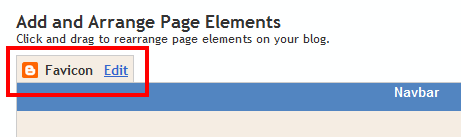
You can add a custom favicon from the Design | Page Elements tab (or, from theLayout tab if you're using the new user interface), by clicking Edit on the new “Favicon” setting above the navbar element:

Customize Your Favicon For Blogger Blog

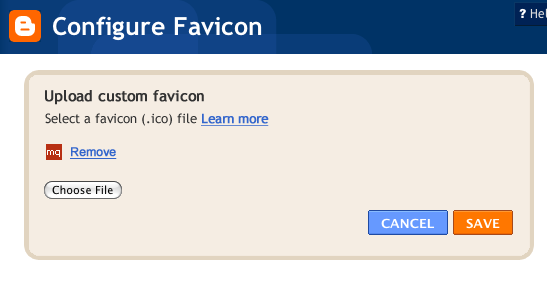
A new window will then open where you can select an image from your hard drive to replace the default favicon image. This initial launch only supports .ico files, but you can easily convert your JPEG, PNG, or other non-ico image file using your own image software. There are also many conversion tools online, and a quick Google Search brings up a handful of options such as http://www.icoconverter.com/.

Customize Your Favicon For Blogger Blog
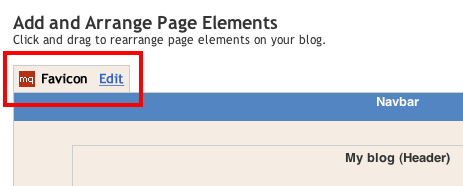
Once you’ve selected the .ico file for your favicon, click Save. They'll automatically resize the image to the correct dimensions, and you’ll then see the Page Elements updated with your selected favicon image:

Customize Your Favicon For Blogger Blog

When you save your template changes, you’ll see your newly-added favicon image displayed in your browser window or tab. That’s it!

In the future, they’ll add support for more non-ico image formats, so stay tuned. In the meantime, please leave us a comment below and let us know what you think.
More about → Customize Your Favicon For Blogger Blog

New! Mobile templates in Blogger

Make your blog look great on mobile devices with a mobile-optimized version of your current blog template. You can preview or turn off the mobile version under settings.

New! Mobile templates in Blogger

More about → New! Mobile templates in Blogger

How To Remove Automatic Readmore at Static Page Blogger


Most Blogger template that I created still using old version of "automatic readmore" feature. So, if you are using my blogger templates than you need to edit the template manually to remove read more option from the static pages.

Follow the instructions below to remove automatic read more from blogger static pages.

1. Go to Dashboard → Design → Edit Html → Expand Widget Templates.

2. Press Ctrl+F and search this codes.


<div class='post-body entry-content'>
Then add this code below that codes.

<b:if cond='data:blog.pageType == &quot;static_page&quot;'><br/>
<data:post.body/>
<b:else/>

Look like this

<div class='post-body entry-content'>
<b:if cond='data:blog.pageType == &quot;static_page&quot;'><br/>
<data:post.body/>
<b:else/>

3. Press Ctrl+F and search this codes.

<div style='clear: both;'/> <!-- clear for photos floats -->

Then add this code above that codes.

</b:if>

look like this

</b:if>
<div style='clear: both;'/> <!-- clear for photos floats -->

4. Save
More about → How To Remove Automatic Readmore at Static Page Blogger

New Stylish Subscription Box For Blogger/Wordpress Sidebar


Hi friends! I have been receiving a lot of comments and emails ever since the launch of Shoutmeloud thesis theme for blogger. Few people said that the read more hack does not work. To all those who faced the same problem, you just need to use the blogger's "Updated Post Editor" and hit the "Insert jump break" icon. To know where that icon is, have a look at the following picture.
blogger-jump-break-icon
If you wish to have an automatic read more hack for your blog, that is, if you are not comfortable with the manual hack, then read the following article to install the automatic version - Automatic Read More Hack For Blogger With Thumbnails. However, there is one main drawback with this widget. The hack crushed the image which makes the thumbnail next to the snippet look worse. So, if you are ready to sacrifice the quality of image being displayed on the thumbnail, well you can go for this hack. However, I recommend manual hack because I use manual hack on my blog:)


Well, coming to the objective of this post, I plan to provide the coding for the subscription widget. It is pretty simple to add this widget on your blog. Requires little customization but very easy to add. So, let's begin with the installation. 

1. Navigate to "Design >> Page Elements" from your blogger dashboard. Now, hit the "Add a gadget" tab and choose "HTML/JavaScript". You will notice that a new window opens up, enter the following text - Receive Free Updates as the title text.
2. For the content part of the widget, just copy the following code and paste it below the space available.
<center>
<form style="padding-top:6px;" id="subscribe" action="http://feedburner.google.com/fb/a/mailverify" method="post" target="popupwindow" onsubmit="window.open('http://feedburner.google.com/fb/a/mailverify?uri=LinkBuildingServiceBlog', 'popupwindow', 'scrollbars=yes,width=550,height=520');return true">
<input type="text" value="Enter your email address..." id="subbox" onfocus="if (this.value == &#39;Enter your email address...&#39;) {this.value = &#39;&#39;;}" onblur="if (this.value == &#39;&#39;) {this.value = &#39;Enter your email address...&#39;;}" name="email" style="width:170px;" />
<input type="hidden" value="LinkBuildingServiceBlog" name="uri" />
<input type="hidden" name="loc" value="en_US" />
<input style="
        padding-left:5px;
        padding-right:5px;
        padding-top:1px;
        border: 1px solid #198DC9;
        cursor: pointer;
        -moz-border-radius: 15px 15px 15px 15px;
        background-color: #198DC9;; 
        color: #FFFFFF;
        font: normal 15px Times New Roman;" 
type="submit" value="Subscribe" />
</form>
</center>
<center>
<table border="0">
<tr>
<td>
<a href="http://twitter.com/buytextlink" target="_blank" title="Follow Me On Twitter">
<img style="width:42px; height:42px;" src="https://blogger.googleusercontent.com/img/b/R29vZ2xl/AVvXsEghRf3P4cYtrgYl2aDNnfGr7KoFFIFmjMRqN7lKL_exsKIpip6_S5Mkti2jcU4DxZLnbDbcjA95ro2G2_7_ZMZsGm2k_J8ksnYynXeXa4IqgoYtKMVDEOo40f_RzbzPAK7n44fWzIFNMlM/s800/EAB_twitter%2520icon.png" /></a>
</td>
<td>
<a href="http://feeds.feedburner.com/LinkBuildingServiceBlog" target="_blank" title="Subscribe Via RSS">
<img style="width:42px; height:42px;" src="https://blogger.googleusercontent.com/img/b/R29vZ2xl/AVvXsEjqDzkJnxj2gesR52L4yUVnY5709-a9EHTVBhdSKXsqqedYrh0vh3pXD4X-3iGd94aJjmACBzCPvPdzQR2EjuGuZixbu0AU2lyhRh2_61-DbH6Qzll_E3xEcGAVqjSaNvHhTfrsP4s6pRE/s800/EAB_rss.png" /></a>
</td>
<td>
<a href="http://www.facebook.com/pages/BuyTextLink/154076357971453" target="_blank" title="Find Us On Facebook">
<img style="width:42px; height:42px;" src="https://blogger.googleusercontent.com/img/b/R29vZ2xl/AVvXsEjDzyKNYYWOf7sqaUZQZBYxf_q97XPXabouQnh3KgjbgRB2FPaHGxi8xQsWr9kRhKOhDZroBhK4qDI6SSznM4amBhiWhmB3OMzv15v3Fmm3LUNTdJ564RCOaQBxU23NrQKOEdUjhwzaDkw/s800/EAB_facebook%20icon.png" /></a>
</td>
<td>
<a href="http://technorati.com/faves?sub=addfavbtn&add=http://linkbacksite.blogspot.com" target="_blank" title="Add To Technorati">
<img style="width:42px; height:42px;" src="https://blogger.googleusercontent.com/img/b/R29vZ2xl/AVvXsEhgvG2dk1u5hMvffaH_P46qAYKkcP0YEqRZpOfxHcRxeJKMuCXAa4ju9Kd5idyaPWLkjVShye4W3HBk4ZaYrr8Qfb1Lflx5eW9cxOIVlCk4CyUQUYzMfWe6TvP1rT4dwu6fX4Lp_2pjcBw/s800/EAB_technorati%2520icon.png" /></a>
</td>
<td>
<td>
<a href="http://feeds.feedburner.com/LinkBuildingServiceBlog"><img src="http://feeds.feedburner.com/~fc/LinkBuildingServiceBlog?bg=000000&amp;fg=FFFFFF&amp;anim=1" height="26" width="88" style="border:0; padding-top:5px" alt="Fellow Readers" /></a>
<script type="text/javascript" src="http://twittercounter.com/embed/BuyTextLink/ffffff/111111"></script>
</td>
</td>
</tr>
</table>
</center>
3. Note the links highlighted in green color. Just replace those links highlighted in green with the corresponding links you obtain from social networking sites - Twitter, Facebook, Technorati. Similarly, replace my Feedburner URL with your feed URL. Replacing links are self-explanatory.

4. When it comes to the links highlighted in blue, those associated with the Feedburner forms, please obtain the code from your Feedburner email subscription form. To do so, hit the following link - Feedburner, burn your blog's post feed and obtain the code for your form by navigating to "Publicize >> Email Subscriptions" page from the Feedburner dashboard. 

5. The code for your Feedburner chicklet can also be obtained in the same page - just hit the FeedCount tab and customize the appearance of your chicklet. Replace the text in pink with your twitter username for the twittercounter. 

6. Save your widget by hitting the "Save" tab at the bottom right after these modifications and your subscription box is ready.

I hope you enjoyed this widget. If you have any problems in installing this widget on your blog, then let me know via comments or email and I will help you solve your problems. I have received few requests like the slider for the featured content, background color for the links appearing in the post and so on. To all those who requested these modifications, please wait. Once I find the coding for your customizations, I will post an article on the same.

Thanks To Mukand For This Wonderful Post 

More about → New Stylish Subscription Box For Blogger/Wordpress Sidebar

How To Add CSS Search Box To Blogger Blog

1.Login to your blogger dashboard--> layout- -> Edit HTML

2.Scroll down to where you see </head> tag .

3.Copy below code and paste it just before the </head> tag .

<style type='text/css'>
.formbutton{
cursor:pointer;
border:solid 4px #ccc;
background:#999;
color:#fff;
font-weight:bold;
padding: 1px 2px;
background:url(https://blogger.googleusercontent.com/img/b/R29vZ2xl/AVvXsEimG6bpTiIRoh9xd4LJ67JL8rRmfZ8l4A_zuOak0F9wXd-QWB_Q9nsvBzxP7n2jW5YyXL1w04ztOJg-_eh9vFeKa3xq6ILNvj3BdKy1v3geCyVOx3AV_UwG9YsFjGnLUVvxhfm0DdX3a6Y/) repeat-x left top;
}
.formbox{
border:solid 5px #000000;
background:#ffffff;
color:#000;
font-weight:normal;
padding: 1px 2px;
}
</style>
NOTE:You can change background image,colors,borders,.. as your choice.

4.Now save your template.

5.Go to Layout-->Page Elements and click on "Add a gadget".

6.Select "html/java script" and add the code given below and click save.

<form id="searchthis" action="http://YOURBLOG.blogspot.com/search" style="display:inline;" method="get">
<input id="b-query" class="formbox" maxlength="255" name="q" size="35" type="text"/>
<input id="b-searchbtn" class="formbutton" value="Search" type="submit"/>
</form>

Note:
Replace "YOURBLOG" with your blog name.

You are done.It will look like this:


More about → How To Add CSS Search Box To Blogger Blog

How Can I Edit Labels On Multiple Posts At Once On Blogger/Blogspot?


The Edit Posts page includes options for displaying posts by label, and for applying or removing labels on batches of posts. To get there, visit the Posting | Edit Posts tab, or just click the Manage Posts link on your dashboard.

How Can I Edit Labels On Multiple Posts At Once On Blogger/Blogspot?

This page has all labels in use by this blog listed on the left-hand side. Each individual post also has its particular labels marked in green next to its title. By default, posts with all labels are shown.

How Can I Edit Labels On Multiple Posts At Once On Blogger/Blogspot?

(Note: You'll only see the labels here if you have at least one post already labeled. You can label an individual post on the posting form.)

If you click the label links on the left-hand side, the list of posts will be narrowed down to show only posts with that particular label.

Each post has a checkbox next to it. If you want to make a change to multiple posts, first check all the ones that you want to affect. Then select an option from the "Label Actions..." menu.

How Can I Edit Labels On Multiple Posts At Once On Blogger/Blogspot?

This menu includes options for adding any of your labels to the select posts, as well as for removing labels already on the posts. You can also select "New Label..." if you want to create a label that you don't already have.

If you want to edit a label across all posts, you can do so by removing it and then adding a new one. For instance, say you want to change the label "Books" to "Reading." Just follow these steps:
  1. Click the "Books" label link on the left side of the page.
  2. Click the "Select All" link at the top of the list of posts.
  3. From the "Label Actions..." menu, choose "Remove label > Books."
  4. From the "Label Actions..." menu, choose "Apply label > New Label..."
  5. Enter "Reading" as your new label. (If you already have some posts with the label "Reading," you can simply apply that label, without making a new label.)
    More about → How Can I Edit Labels On Multiple Posts At Once On Blogger/Blogspot?

    Blog Sharing Platform For Bloggers -Bloggers.Com

    Blog Sharing Platform For Bloggers - Bloggers.Com

    About Bloggers

    Blog Sharing Platform For Bloggers -Bloggers.Com
    Bloggers.com is dedicates site for Blog Authors. Blog (a contraction of the term "Web log") is Web site with regular entries of commentary, descriptions of events, or other material such as graphics or video.

    Bloggers.com categorizes and highlights Blog Authors' profiles by their interest and contribution - for example some Bloggers publish commentary or news on a particular subject; others maintain blog for personal online diaries. In this site they encourage Bloggers to tell about themselves, share own pictures, share their blog links. They encourage authors of any type of blogs including Textual, art (artlog), photographs (photoblog), sketches (sketchblog), videos (vlog), music (MP3 blog), audio (podcasting), which are part of a wider network of social media. They can also discuss on Micro-blogging sites, another type of blogging, one which consists of blogs with very short posts.

    They envision this site like a big cafe where authors can meet each other, send private message and invite friends and relatives.

    I suggest to bloggers that they should join this website,because they can share their blog posts,blog links with other bloggers,other people.They can enjoy on this website also with topics.you can share topics with other bloggers.

    More about → Blog Sharing Platform For Bloggers -Bloggers.Com

    Top 4 Free Blog Services

    Top 4 Free Blog Services
    A blog can have many purposes. People use them as a source of outlet, recording their daily thoughts and activities for anyone to see. Businesses can make perfect use of blogs to help boost the strength of their online presence. Blogs can be used as part of a SEO online marketing strategy and they can be extremely beneficial to companies of all sizes.

    As a professional blogger I have had the opportunity to work on multiple free blogging platforms and I have discovered that I have my favourites. These are excellent for both promotional purposes and personal use.

    Blogger is a free blog-publishing tool from Google for easily sharing your thoughts with the world. Blogger makes it simple to post text, photos and video onto your personal or team blog.

    Blogger was started by a tiny company in San Francisco called Pyra Labs in August of 1999. This was in the midst of the dot-com boom. But we were not exactly a VC-funded, party-throwing, football-in-the-lobby-playing, free-beer-drinking outfit. (Unless it was other people's free beer.)

    Make Blog on Blogger and earn Money from Google Adsense program.Blogger is very friendly with Google Adsense


    All lists like this add WordPress into the list, and for good reason. On a professional level I find this platform to be the best. You can create professional looking pages very easily, and even upgrade to have your own domain for a small yearly fee.

    Plugins and Widgets help you to personalise and optimise the site to your liking. You may need to do a little bit of research into how to get the most from WordPress, but there is plenty of support for those who need it.


    This is a fantastic free blog which is extremely simple to use. You can customise your page using free and premium themes. Many will allow you to add a background and header of your choice to help you make it stand out from the crowd. This is simpler to use than WordPress because it is a lot more limited, but that doesn't mean you should avoid using it.

    For a great looking casual blog Tumblr is the answer. You can create a promotional site which links to your main sites and join in with the widely active community. Search for tags and start to follow people, and soon you will find that you have hundreds of followers yourself.


    I had the pleasure of discovering Posterous through work writing about products for a well-known catalogue company. I found that out of all the Blog sites I was working with, this one had the most views. Posting is simple and it is easy to work with.

    Again you have many themes which are free to use which is always a feature I appreciate. Users can log in to comment using Facebook and Twitter but perhaps the only downside is that other Posterous bloggers are unable to reblog what you post unlike Tumblr.

    Create a system of satellites

    As a business I recommend using all of the free blogging platforms to create a good spread of pages all over the Internet. Theme each blog to one certain aspect of your company and then link it to the relevant section on your website. To help optimize your website be sure not to create links away from it. This will then have several satellite sites which draw attention to the dominant home for your company.
    More about → Top 4 Free Blog Services

    Blog Site Promotion - 4 Professional Blogger Tips For Huge Web Traffic From Search Engines

    Blog Site Promotion - 4 Professional Blogger Tips For Huge Web Traffic From Search EnginesToday I am sharing this article,you can learn from this article that how to done Blog Site Promotion .Simply read and apply these super secrets for increasing blog popularity - if you can handle the traffic!!

    My 4 blogging secrets are legitimate, easy to understand and effective in drumming up web sales!

    These 4 tips are written to help bloggers make a personal connection with their target readers, and convert them into loyal customers over a short period of time with consistent application of these professional blogging tips, which are based on a proven approach to blog site promotion!

    1. Use everyday words and everyday life as the basis for your blog posts! This simple blogging tip may come as a surprise for many web business owners but it is known to work, so don't trash the idea just because it sounds too easy! Big words cut the connect with the average reader (research indicates the most popular blog sites use simple language, a friendly tone, even humor and original information the reader can use, or be entertained by). Succinct phrases, commonly used words and writing the way you talk helps build a relaxing feel around the blogosphere, which helps engage blog readers, earning your blog steady traffic.

    2. Focus on giving value to your blog readers rather than sticking to the rule book! Don't worry too much about sounding literary and rules of grammar, as even the better business blogs today follow an informal, even humorous format. Of course, it makes sense to use an active voice for your blog posts, if site promotion is your main aim. Doing so will help you address the reader as an individual, which improves the personalized feel necessary to convert a lead into a customer. But, on the whole, if you've gotten the main points across clearly in an organized manner, fixed any spelling errors and avoid inflated language or too much jargon in your blog post, site promotion will fall naturally in place.

    3. Keep a friend handy to keep your blog writing honest! A good friend will be honest in pointing out obvious flaws in your blog writing, including disorganized thoughts or content that is overly sale-sy. So enlist a close pal to help you give your best voice to the most important blog posts. Your posts should 'sound like you' and be consistent with the image of your web business. Work with your friendly critic to ensure all your blog posts are authentic and appealing. This sincerity will help you build your blog readership and traffic substantially, especially if you have a flair for creative writing.

    Combine original content with proven SEO tactics, like long-tail keyword integration in a natural manner to increase the relevance of your blog posts for better site promotion on Google and Yahoo!
    4. Read your blog posts out loud! This step will draw your attention to any awkward sentence structure and poor punctuation that may have crept into your blog post's first draft. Fix the parts you seem to 'stumble' over with words and phrases that fit more naturally in the flow of the topic before you make the post 'live.'

    Apply these tips for your blog.you will really see the great result in search engines like Google,Yahoo,MSN,Bing Etc.
    More about → Blog Site Promotion - 4 Professional Blogger Tips For Huge Web Traffic From Search Engines