Tampilkan postingan dengan label Blog Tips. Tampilkan semua postingan

How To Add AJAX Video Search Bar To Blogger Blog?

  • First Go To Following Web Address

  • Add search expression or keyword. all these keywords are appears at bottom of Ajax video search bar

  • Add your blog or web-site address at Site URL field

Now click on Generate Code Button, Select all code and copy it to clipboard
Now go to blogger, click on design then click on Add Gadget select HTML / Java Script and paste copied code to it and save changes
More about → How To Add AJAX Video Search Bar To Blogger Blog?

Customize Your Favicon For Blogger Blog

( Cross Posted On Blogger In Draft Blog )
For many bloggers, having a custom favicon (the tiny image displayed in your browser’s window or tab) is the finishing touch that ties together the design and identity of a great looking blog.

They're pleased to announce that Blogger in Draft users can now add a customized favicon to their blog.
Customize Your Favicon For Blogger Blog

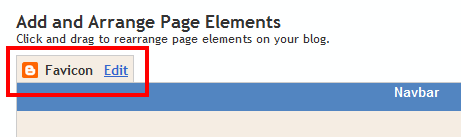
You can add a custom favicon from the Design | Page Elements tab (or, from theLayout tab if you're using the new user interface), by clicking Edit on the new “Favicon” setting above the navbar element:

Customize Your Favicon For Blogger Blog

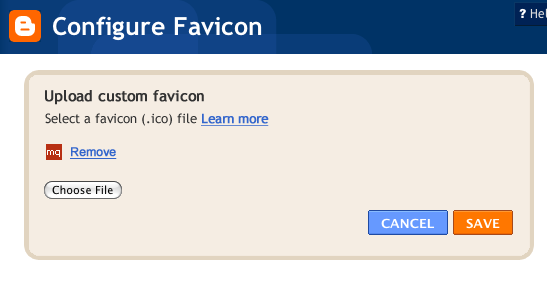
A new window will then open where you can select an image from your hard drive to replace the default favicon image. This initial launch only supports .ico files, but you can easily convert your JPEG, PNG, or other non-ico image file using your own image software. There are also many conversion tools online, and a quick Google Search brings up a handful of options such as http://www.icoconverter.com/.

Customize Your Favicon For Blogger Blog
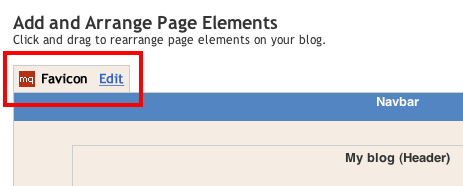
Once you’ve selected the .ico file for your favicon, click Save. They'll automatically resize the image to the correct dimensions, and you’ll then see the Page Elements updated with your selected favicon image:

Customize Your Favicon For Blogger Blog

When you save your template changes, you’ll see your newly-added favicon image displayed in your browser window or tab. That’s it!

In the future, they’ll add support for more non-ico image formats, so stay tuned. In the meantime, please leave us a comment below and let us know what you think.
More about → Customize Your Favicon For Blogger Blog

How To Remove Automatic Readmore at Static Page Blogger


Most Blogger template that I created still using old version of "automatic readmore" feature. So, if you are using my blogger templates than you need to edit the template manually to remove read more option from the static pages.

Follow the instructions below to remove automatic read more from blogger static pages.

1. Go to Dashboard → Design → Edit Html → Expand Widget Templates.

2. Press Ctrl+F and search this codes.


<div class='post-body entry-content'>
Then add this code below that codes.

<b:if cond='data:blog.pageType == &quot;static_page&quot;'><br/>
<data:post.body/>
<b:else/>

Look like this

<div class='post-body entry-content'>
<b:if cond='data:blog.pageType == &quot;static_page&quot;'><br/>
<data:post.body/>
<b:else/>

3. Press Ctrl+F and search this codes.

<div style='clear: both;'/> <!-- clear for photos floats -->

Then add this code above that codes.

</b:if>

look like this

</b:if>
<div style='clear: both;'/> <!-- clear for photos floats -->

4. Save
More about → How To Remove Automatic Readmore at Static Page Blogger

How To Add CSS Search Box To Blogger Blog

1.Login to your blogger dashboard--> layout- -> Edit HTML

2.Scroll down to where you see </head> tag .

3.Copy below code and paste it just before the </head> tag .

<style type='text/css'>
.formbutton{
cursor:pointer;
border:solid 4px #ccc;
background:#999;
color:#fff;
font-weight:bold;
padding: 1px 2px;
background:url(https://blogger.googleusercontent.com/img/b/R29vZ2xl/AVvXsEimG6bpTiIRoh9xd4LJ67JL8rRmfZ8l4A_zuOak0F9wXd-QWB_Q9nsvBzxP7n2jW5YyXL1w04ztOJg-_eh9vFeKa3xq6ILNvj3BdKy1v3geCyVOx3AV_UwG9YsFjGnLUVvxhfm0DdX3a6Y/) repeat-x left top;
}
.formbox{
border:solid 5px #000000;
background:#ffffff;
color:#000;
font-weight:normal;
padding: 1px 2px;
}
</style>
NOTE:You can change background image,colors,borders,.. as your choice.

4.Now save your template.

5.Go to Layout-->Page Elements and click on "Add a gadget".

6.Select "html/java script" and add the code given below and click save.

<form id="searchthis" action="http://YOURBLOG.blogspot.com/search" style="display:inline;" method="get">
<input id="b-query" class="formbox" maxlength="255" name="q" size="35" type="text"/>
<input id="b-searchbtn" class="formbutton" value="Search" type="submit"/>
</form>

Note:
Replace "YOURBLOG" with your blog name.

You are done.It will look like this:


More about → How To Add CSS Search Box To Blogger Blog

How Can I Edit Labels On Multiple Posts At Once On Blogger/Blogspot?


The Edit Posts page includes options for displaying posts by label, and for applying or removing labels on batches of posts. To get there, visit the Posting | Edit Posts tab, or just click the Manage Posts link on your dashboard.

How Can I Edit Labels On Multiple Posts At Once On Blogger/Blogspot?

This page has all labels in use by this blog listed on the left-hand side. Each individual post also has its particular labels marked in green next to its title. By default, posts with all labels are shown.

How Can I Edit Labels On Multiple Posts At Once On Blogger/Blogspot?

(Note: You'll only see the labels here if you have at least one post already labeled. You can label an individual post on the posting form.)

If you click the label links on the left-hand side, the list of posts will be narrowed down to show only posts with that particular label.

Each post has a checkbox next to it. If you want to make a change to multiple posts, first check all the ones that you want to affect. Then select an option from the "Label Actions..." menu.

How Can I Edit Labels On Multiple Posts At Once On Blogger/Blogspot?

This menu includes options for adding any of your labels to the select posts, as well as for removing labels already on the posts. You can also select "New Label..." if you want to create a label that you don't already have.

If you want to edit a label across all posts, you can do so by removing it and then adding a new one. For instance, say you want to change the label "Books" to "Reading." Just follow these steps:
  1. Click the "Books" label link on the left side of the page.
  2. Click the "Select All" link at the top of the list of posts.
  3. From the "Label Actions..." menu, choose "Remove label > Books."
  4. From the "Label Actions..." menu, choose "Apply label > New Label..."
  5. Enter "Reading" as your new label. (If you already have some posts with the label "Reading," you can simply apply that label, without making a new label.)
    More about → How Can I Edit Labels On Multiple Posts At Once On Blogger/Blogspot?

    How to Suggest Or Submit Your Blog/Website to an Add Link Directory

    How to Suggest Or Submit Your Blog/Website to an Add Link DirectoryWhen trying to get links to your Blog/Website you need to develop a link building campaign. In this campaign you will learn how to suggest or submit your Blog/Website to Add Link directories. This can help you to dramatically increase your traffic to your Blog/Website and page rank. Directory submissions are easy to obtain, however you need have a page on your own Blog/Website to exchange links from. Most all web directory submit pages require you give a link back to them so that they can benefit as well.

    There are several ways to find pages to get links from, however the best way is searching the internet. Say that you had a Blog/Website design company and you wanted to find sites to place your link on. You would need to search the web for terms link, Blog/Website Design Submit Link, Or Blog/Website Design Directory, Blog/Website Design "Add Link" or "Suggest URL". These will bring up sites that include the terms you are looking for. The benefit of building links this way is that you can find sites that are valued highly by the search engine you are using as well for your key terms. Therefore your links will be more valuable.

    In order to create a successful link directory submission campaign, you need to be persistent and work on this regularly. Depending on the competition for your key word, you may need to do this once a month or as often as every single day. If you are competing for a top key word such as web design, you must understand that the people with top rankings have regular link submit campaigns going on, and they already have thousands - if not hundreds of thousands of links to their Blog/Website.

    There are many programs on the internet that make it easier to add links to your Blog/Website such as link directory programs that you can place on your own Blog/Website. This will make it easier to add and manage your links without constantly manually making modifications.

    There are also some backlink builder sites that help you find good sites to link to. This can be a valuable and easy to use tool that can save you time on your directory submission tactics. What this tool does is performs these complex searches for you and all you need to do is enter your simple key term, it is a pretty cool tool that can save some time.

    So keep working hard to suggest your URL to Blog/Websites and directory's. After you submit your Blog/Website link regularly you will start to notice results in 1-4 months within the search engines. I also recommend you get a web statistics program to track your progress. You must also make sure that when building links you use your top key terms in your link anchor text when you submit your URL to these sites.
    More about → How to Suggest Or Submit Your Blog/Website to an Add Link Directory

    Link Building Techniques For Building Thousands of Inbound Links to Your Blog

    Link Building Techniques For Building Thousands of Inbound Links to Your BlogPeople always struggle to get those first website visitors and they work very hard to get only a few hundred links to their "brand new" website. As an example: You start a website and plan to build ten thousand links to your website. 10000/365 days equals 27. You have to make 27 forum posts or blog comments each and every day to build only ten thousand links to your website. Is there an easier way to do this? Well, there are some techniques to build thousands of links in minimum time.

    Creating Free Website Scripts

    Are You familiar with PHP programming language? Why don't You develop Your own free (open-source) PHP script or a simple WordPress plugin and share it with other webmasters? Make sure You add Your website's link somewhere inside the script. Submit the script to large script directories like HotScripts.com and start getting thousands of backlinks from other people's blogs.

    Making Free Website Templates

    Do you know how to make your own free website templates? Go to WordPress.org, find some free WordPress themes, download them and use them to create your own free WordPress themes. Add your own link to theme's footer and submit the theme back to WordPress.org and some Free WP Theme directories. When someone installs your free WP theme, your link will appear at the bottom of his website and you will get a backlink. If you submit the theme to 10-20 most popular theme directories, you will get thousands of downloads and, of course, thousands of backlinks to Your website.

    Software Development

    This is a technique I use to get high PR backlinks without having to do any manual submission. First, you have to create a new piece of software to distribute. Don't worry, programming knowledge is not required to do this. There are hundreds of blogs and programs on the net that make it easy for you to create screensavers or browser toolbars (Conduit.com or Screensaver Factory 4 Enterprise). Next You need to download a freeware called PadGen.

    This app will let you generate a.PAD file for Your new software. You run this program and fill it with information about your software. Make sure you add Your homepage URL to this file. You're almost done - you have your software and a valid PAD file. Now, go to Google and search for "submit pad file". You will find hundreds of shareware blogs that allow you to submit Your.PAD file to. You paste in the URL to your pad file and click submit. Shareware blogs will read Your.PAD file and index Your software in their directories. They will also find your website's URL inside the.PAD file and put it on Your software's page on their website. There are many software directories with high PR so, you could get some high-quality backlinks and tons of instant traffic.
    More about → Link Building Techniques For Building Thousands of Inbound Links to Your Blog

    How I Got My AdSense Approved With Traffic Less Than 150 Visits A day

    How I Got My AdSense Approved With Traffic Less Than 150 Visits A day
    I am very glad to say that my AdSense account was approved in the last year and I am sorry to say this late but I think you might have identified that from the Ads on this blog.Anyway since I got my AdSense approved I want to share my journey with AdSense with my lovely readers so here I am.

    Actually at the starting time of my blog I thought to apply for AdSense only after my blog becomes 6 months old because it was the main thing in their TOS and the reason what they have said when I applied with my old BlogSpot blog.So I decided to apply only after 6 months from my start that is this may but it is because of Balli who made me to apply to AdSense since he got approved with a blog which is even Younger than AG so I took the chance and applied and was rejected with a reason which sounded strange for me that is “Domain In evident Ownership” .Even the solution to this was said by him and that got solved .

    Moral: No need to wait for 6 months to apply for AdSense and Unluckily if you also got the same reason i.e. domain in evident ownership for rejection from AdSense team then you have to go to your Domain Control Panel and then should Unhide the ownership details of your domain.So that AdSense will compare the owner of the site and the person applied .

    Even I did the above I got rejected from AdSense saying some stupid reason I didn’t remember it otherwise I should have mentioned.Other thing I want to say is don’t display any ads on your blog/site when you apply for AdSense I think that might be the reason for my rejection for the 2nd time but once I removed the ads then on next day itself my AdSense got approved.So guys don’t think of few bucks you are going to earn using those ads think wise and remove them many more bucks from Google are waiting for you.

    Finally I like to conclude this post by giving you some important tips you should keep in mind while applying for AdSense

    1)Google is not considering the age of your blog while approving AdSense so why to waste time why cant test your luck now.

    2)No need to wait until you get very huge traffic like 1k unique visits a day.If some one says that it is a must then bring them to me I will answer them.( I got approved when my blog has just 150 visits)

    3)It is better to have 60 to 70 unique posts on your blog before you apply for AdSense.I cant say it is must but it is always better to have some posts rite.

    Happy Adsense Earning 
    More about → How I Got My AdSense Approved With Traffic Less Than 150 Visits A day

    Blog Site Promotion - 4 Professional Blogger Tips For Huge Web Traffic From Search Engines

    Blog Site Promotion - 4 Professional Blogger Tips For Huge Web Traffic From Search EnginesToday I am sharing this article,you can learn from this article that how to done Blog Site Promotion .Simply read and apply these super secrets for increasing blog popularity - if you can handle the traffic!!

    My 4 blogging secrets are legitimate, easy to understand and effective in drumming up web sales!

    These 4 tips are written to help bloggers make a personal connection with their target readers, and convert them into loyal customers over a short period of time with consistent application of these professional blogging tips, which are based on a proven approach to blog site promotion!

    1. Use everyday words and everyday life as the basis for your blog posts! This simple blogging tip may come as a surprise for many web business owners but it is known to work, so don't trash the idea just because it sounds too easy! Big words cut the connect with the average reader (research indicates the most popular blog sites use simple language, a friendly tone, even humor and original information the reader can use, or be entertained by). Succinct phrases, commonly used words and writing the way you talk helps build a relaxing feel around the blogosphere, which helps engage blog readers, earning your blog steady traffic.

    2. Focus on giving value to your blog readers rather than sticking to the rule book! Don't worry too much about sounding literary and rules of grammar, as even the better business blogs today follow an informal, even humorous format. Of course, it makes sense to use an active voice for your blog posts, if site promotion is your main aim. Doing so will help you address the reader as an individual, which improves the personalized feel necessary to convert a lead into a customer. But, on the whole, if you've gotten the main points across clearly in an organized manner, fixed any spelling errors and avoid inflated language or too much jargon in your blog post, site promotion will fall naturally in place.

    3. Keep a friend handy to keep your blog writing honest! A good friend will be honest in pointing out obvious flaws in your blog writing, including disorganized thoughts or content that is overly sale-sy. So enlist a close pal to help you give your best voice to the most important blog posts. Your posts should 'sound like you' and be consistent with the image of your web business. Work with your friendly critic to ensure all your blog posts are authentic and appealing. This sincerity will help you build your blog readership and traffic substantially, especially if you have a flair for creative writing.

    Combine original content with proven SEO tactics, like long-tail keyword integration in a natural manner to increase the relevance of your blog posts for better site promotion on Google and Yahoo!
    4. Read your blog posts out loud! This step will draw your attention to any awkward sentence structure and poor punctuation that may have crept into your blog post's first draft. Fix the parts you seem to 'stumble' over with words and phrases that fit more naturally in the flow of the topic before you make the post 'live.'

    Apply these tips for your blog.you will really see the great result in search engines like Google,Yahoo,MSN,Bing Etc.
    More about → Blog Site Promotion - 4 Professional Blogger Tips For Huge Web Traffic From Search Engines

    12 Ways to Fastly Improve Alexa Rank of Your Blog

    12 Ways to Fastly Improve Alexa Rank of Your Blog12 Ways to Fastly Improve Alexa Rank of Your Blog. Hope some will be helpful for your blog situation.

    1. Install Alexa toolbar and set your blog as the home page. As you know, Alexa rank is determined on the basis of the information collected by the Alexa toolbar. Only the click of the visitor who has it installed will be counted when he visits your website. As the webmaster of a personal website, the first thing you should do is to install it on your own browser and set your blog to be the home page so that every time you open IE, you make a little contribution to your own site for Alexa rank improvement.

    2. Install Alexa toolbar on all computers you can touch. And set your blog as the home page. Encourage all people you know to install Alexa toolbar.

    3. Put up a Alexa counter widget on your blog. When it is clicked, it will be counted as traffic by Alexa, even if the one who clicks it does not install the Alexa toolbar.

    4. Write some articles about Alexa on your blog. You can even open a Alexa column. Many webmasters would like to see these things. If you write good articles, they are likely to republish or link to them, which also can bring you traffic and hence help to increase Alexa rank.

    5. Go to where bloggers often visit and post the URL of your blog there. Generally, bloggers have Alexa toolbar installed. You may go to some webmaster forums to write posts promoting your blog.

    6. Tell friends to vote for your blog on Alexa website. Though it is not sure how much this will benefit your blog's Alexa rank, it is better to have a good rating.

    7. Write the columns that bloggers would be concerned about, such as an SEO column, to attract more webmasters to visit your site.

    8. Use Alexa redirection function.

    9. If possible, go to some foreign forums or websites to promote your blog, for foreign surfers often install the Alexa toolbar.

    10. If you have sufficient funds, you may consider buying some pay-per-click ads for your blog. That can bring abundant IP.

    11. Add links to Alexa relevant content in your most popular articles on your blog, or use Alexa redirection to link to other places of your blog.

    12. Buy professional service to boost Alexa rank. Of course it is stable, safe and effect-guaranteed.

    Keep Blogging ..!!
    More about → 12 Ways to Fastly Improve Alexa Rank of Your Blog

    8 Ways to Promote Your Blog In Search Engines!

    8 Ways to Promote Your Blog In Search Engines!
    There are certain periods when it occurs to you that you are the only person who reads your blog. Many of the times you try to write highly influential and detailed articles thinking that your blog is going to get many visitors. This does not however change the trend and you are left asking yourself what could be wrong with your blog.

    To prevent such an experience you can do the following:

    a) Take part in relevant forums

    This is one of the most effective methods that can help you relate with the people you are targeting. If you put relevant comments that are useful to your readers you will find that many will want to visit your blog to learn more about what you are offering. You need to weigh your comments so that they don't look like promotional materials for your blog.

    b) Guest blogging posts.

    These are very effective when it comes to directing traffic to your blog. Many links will be coming from those sites that have your content and all these will be useful in promoting your blog.

    c) Make contributions to other blogs frequently.

    If you make a habit of regularly contributing to other people's postings in other related blogs you will find the same people coming to your blog and commenting. These will give you valuable back links.

    d) Write Articles

    By writing informative articles and posting them to high ranked article directories you can get traffic for your blog. The people who read these articles will want to come to your blog and see what you are offering in full. The articles need to be informative and detailed. You can think of offering solutions to something that is disturbing people in their lives. Do not promote your blog directly because this will make people to stay away from it.

    e) Write press releases.

    Press releases are another way of directing organic traffic into a blog. Just like articles, they are submitted to press release sites where you leave links to lead people to your blog.

    f) Social Media sites.

    These include sites such as Facebook and twitter where you can leave links to direct people to your blog,

    g) Use RSS Directories.

    These give you quality back links to direct traffic to your blog.

    h) Free Ebooks.

    You can write a free ebook that helps people with certain information. Those who read your eBook will direct others to your blog if they find it useful to them.

    So,i think this article is very useful for bloggers,you can get more visitors to your blog why usine more tips from linkbacksite blog.here's all about blogging tips/articles many more.Keep reading this blog.and subscribe for daily updates

    More about → 8 Ways to Promote Your Blog In Search Engines!

    How To Add Animated Flying Twitter Bird Widget For Blogger / Blogspot


    How To Add Animated Flying Twitter Bird(Sparrow)Widget For Blogger / Blogspot

    "Twitter", is one of the most popular Social networking sites in the world among Bloggers to promote their blogs.There are a number of twitter widgets, scripts and plugins available to integrate Twitter with your blog.Most of the icons, buttons or badges are stationary or a fixed floating Twitter gadgets.Now here i have a very cool unique Blogger Twitter widget, an actual Animated flying Twitter Bird that flies around your blog.


    This Plugin is java script based and it will display an animated Twitter bird that settles on different places of your blogs visible area. If a you scroll the page, the bird will fly towards the visible part and settle in a new place and it takes random paths for each flight.When you place the cursor over the Twitter Bird "tweet this" and "follow me" links appear,through this the visitor can tweet the article or follow you.

    Demo:-You can see the Twitter Bird Flying Around this page visible Area, Scroll this Page to see it's Action.


    Add The Flying Twitter Bird To Your Blog


    There are Two types here is am giving.You can have the Bird on every page of your blog or just on the post pages..

    1. Twitter Bird with tweet text has Post title and URL for all post pages Only.
    2. Twitter Bird with tweet text has Current Page title and URL for all Blog pages.

    Add Flying Twitter Bird To Post Pages Only

    1. Go to Your Blogger Dashboard Click > Design > Edit Html


    Design Edit Html Blogger

    Step 2. Find the following piece of code in your blogs Html : (Click Ctrl and F for a search bar to help find the code - More Info)


    </body>
    3. Copy and paste the following ocde directly Below / After </body>

    <b:if cond='data:blog.pageType == &quot;item&quot;'>
    <!-- Twitter Bird Widget for Blogger by linkbacksite.blogspot.com-->
    <script type="text/javascript" src="http://bloggerblogwidgets.googlecode.com/files/way2blogging.org-tripleflap.js">
    </script>
    <script type="text/javascript">
    var twitterAccount = &quot;Your Twitter User Name Here!&quot;;
    var tweetThisText = &quot; <data:blog.pageTitle/>: <data:blog.url/> &quot;;
    tripleflapInit();
    </script>
    <span style="font-size:11px;position:absolute;"><a title='Blogger Widget by Way2blogging.Org' href="http://www.way2blogging.org" target='_blank'><img border='0' src='http://img1.blogblog.com/img/blank.gif'/></a></span><a href="http://www.spiceupyourblog.com" target="_blank">Twitter Bird Gadget</a>
    <!-- Twitter Bird Widget for Blogger by  linkbacksite.blogspot.com -->
    </b:if>
    Important Note:-

    Replace Your Twitter User Name Here! with your twitter user name.You add just the username not the entire URL of your Twitter profile.For example twitter.com/buytextlink , buytextlink is the username.

    4. Save Your template And Check Out Your Twitter Bird.

    Add Flying Twitter Bird To All Pages

    1. Go to Your Blogger Dashboard Click > Design > Edit Html :


    Design Edit Html Blogger

    Step 2. Find the following piece of code in your blogs Html : (Click Ctrl and F for a search bar to help find the code )


    </body>
    3. Copy and paste the following code Directly Below / After </body>

    <!-- Twitter Bird Widget for Blogger by  linkbacksite.blogspot.com -->
    <script type="text/javascript" src="http://bloggerblogwidgets.googlecode.com/files/way2blogging.org-tripleflap.js">
    </script>
    <script type="text/javascript">
    var twitterAccount = &quot;Your Twitter User Name Here!&quot;;
    var tweetThisText = &quot; <data:blog.pageTitle/>: <data:blog.url/> &quot;;
    tripleflapInit();
    </script>
    <span style="font-size:11px;position:absolute;"><a title='Blogger Widget by linkbacksite.blogspot.com' href="http://linkbacksite.blogspot.com/" target='_blank'><img border='0' src='http://img1.blogblog.com/img/blank.gif'/></a></span><a href="http://www.buy-text-link.net/" target="_blank">Link Building Service</a>
    <!-- Twitter Bird Widget for Blogger by  linkbacksite.blogspot.com -->

    Important Note:-
    Replace Your Twitter User Name Here! with your twitter user name.You add just the username not the entire URL of your Twitter profile.For example twitter.com/buytextlink , buytextlink is the username.

    4. Save Your template And Check Out Your Twitter Bird.
    More about → How To Add Animated Flying Twitter Bird Widget For Blogger / Blogspot